
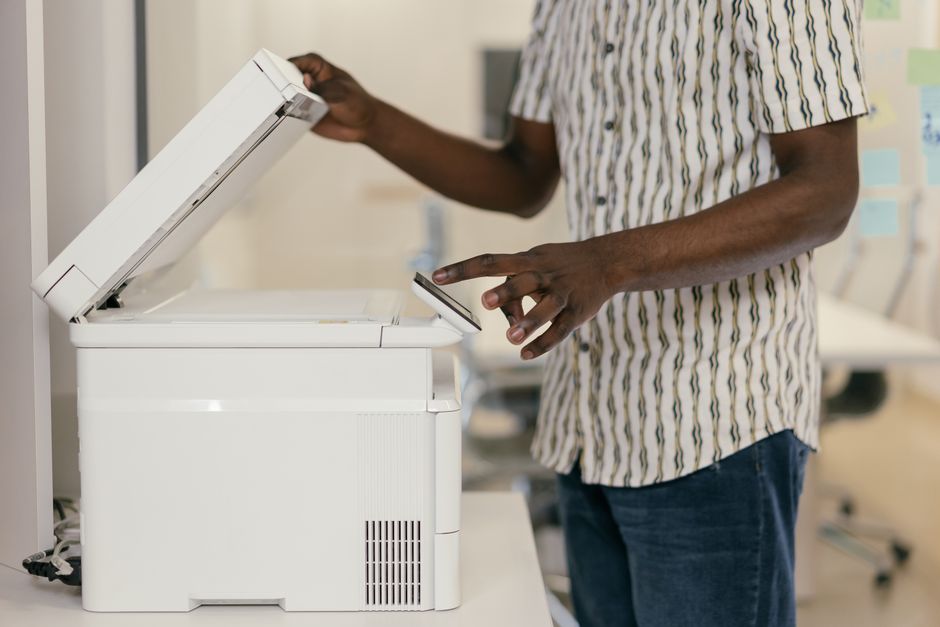
When your printer displays an offline status, the immediate action you should take is to check the physical cable connections, restart both the printer and your computer, and verify that the “Use Printer Offline” option is deselected in your operating system’s print settings. This common issue usually indicates that your computer cannot establish a communication channel with the printing hardware. By systematically addressing connection points, software settings, and network configurations, you can quickly restore your system to online status.
Few office scenarios are as frustrating as pressing the print button only to be met with a silent machine and an error message. Understanding why is my printer offline is the first step toward fixing the issue permanently. In this guide, we will explore the exact technical procedures required to diagnose and resolve this issue across various platforms.
Whether you are using a modern wireless inkjet printer at home or a heavy-duty laser printer in a busy office, the underlying causes of offline errors are remarkably similar. We will break down the solutions into simple, actionable steps that anyone can follow. Let us begin by looking at the most common issues and their immediate remedies.
Common Printer Issues & Quick Fixes
Before diving into deep system settings, it is best to rule out simple physical and environmental factors. Many printer issues are caused by minor interruptions that require only a few moments to correct. Starting with these basic checks can save you hours of unnecessary troubleshooting.
Printer Offline or Not Connecting
When figuring out what to do when printer is offline, your first diagnostic step should always be the power cycle. Turn off your printer, unplug it from the wall outlet, and wait for approximately thirty seconds. While the printer is powered down, restart your computer to clear out any temporary software glitches that might block communication.
Next, inspect the physical connection path between the devices. If you are using a wired setup, unplug the USB or Ethernet cable from both ends and plug them back in firmly. For wireless printers, look at the built-in screen or LED indicators to confirm that the device is actually connected to your local Wi-Fi network.
If the hardware connections look good, you must check the software queue settings on your computer. In Windows, navigate to the Control Panel, select “Devices and Printers,” and double-click your active printer. Click on the “Printer” menu at the top of the window and ensure there is no checkmark next to “Use Printer Offline” or “Pause Printing.”
Mac users should open “System Settings” and navigate to “Printers & Scanners.” If the printer shows an offline status there, try removing the printer from the list by clicking the minus sign, then click the plus sign to add it back. This simple reset forces macOS to search for the device and establish a fresh connection path.
Another common cause of network disconnects is a change in your local IP address structure. If your router recently restarted, it may have assigned a new IP address to your printer, leaving your computer looking for the device at its old location. We will discuss how to assign a permanent IP address to prevent this later in the guide.
How to Clear Paper Jams Safely
A physical paper jam will often trigger a generic offline status or error state on your computer. When this happens, do not attempt to yank the stuck paper out forcefully while the machine is running. Doing so can tear the paper, leaving tiny scraps behind that are almost impossible to extract without dismantling the machine.
Start by turning off the printer and unplugging it from the power source to protect the internal motors. Open the main access doors, which are typically located at the front, back, or top of the machine. Carefully grasp the stuck paper with both hands and pull it slowly in the direction of the natural paper path.
If you are working with a laser printer, be extremely careful around the fuser unit, as it reaches temperatures hot enough to cause severe burns. For inkjet printers, make sure the printhead carriage is parked safely to the side before reaching inside. Once the paper is removed, inspect the rollers for any remaining fragments before closing the access doors.
Fixing Poor Print Quality (Fading, Streaks)
Poor print quality is another frustrating issue that can make it seem like your printer is failing. If your documents are fading or contain horizontal streaks, the cause is usually related to the ink or toner delivery system. Inkjet printers suffer from clogged nozzles, while laser printers often experience uneven toner distribution.
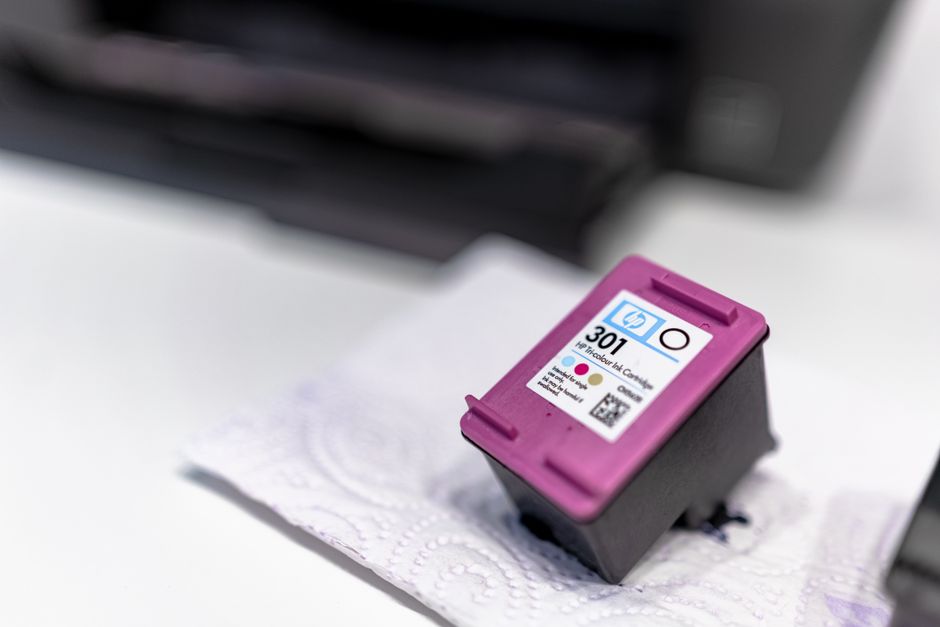
For inkjet models, locate the maintenance menu on the printer’s control panel or within its desktop software utility. Run a printhead cleaning cycle to force fresh ink through the tiny nozzles and clear away dried residue. You may need to repeat this process two or three times if the printer has sat idle for a long period.
If you are troubleshooting a laser printer, remove the toner cartridge and gently rock it from side to side five or six times. This redistributes the fine plastic powder inside the hopper, which often resolves temporary fading or light spots. Additionally, check the drum unit for any scratches or accumulated toner dust that might cause vertical lines.
Advanced Troubleshooting
If the basic quick fixes do not resolve the offline status, you will need to look deeper into the system configuration. Advanced troubleshooting involves looking at how the operating system talks to the physical hardware. This is where we address driver corruption, port configurations, and system services.
Driver Updates & Reinstallation
A corrupted or outdated printer driver is a major reason why users search for what to do when printer is offline. The driver acts as the translator between your computer’s operating system and the printer’s hardware. If this translator becomes corrupted during an operating system update, communication breaks down entirely.
To update your driver on a Windows system, right-click the Start menu and select “Device Manager.” Expand the “Printers” or “Print Queues” section, right-click on your specific printer model, and select “Update driver.” Choose the option to search automatically for updated driver software, and follow the prompts.

If the automatic update fails to find a solution, a manual reinstallation is the most reliable path forward. Visit the official support website of your printer manufacturer (such as HP, Canon, Epson, or Brother) and search for your exact model. Download the latest full software package designed for your specific version of Windows or macOS.
Before installing the new software, completely uninstall the old driver package to prevent file conflicts. In Windows, go to “Settings,” then “Apps,” locate the printer software, and click uninstall. On macOS, delete the printer from “Printers & Scanners” and drag any associated utility applications to the Trash.
Once the old software is gone, restart your computer to clear out any active background processes. Run the downloaded installer file and follow the step-by-step instructions provided by the manufacturer. Do not plug the printer’s USB cable into the computer until the installer specifically prompts you to do so.
For network printers, the installer will scan your local network to locate the device. If the setup utility cannot find it, you may need to enter the printer’s IP address manually. You can usually find this address by printing a network configuration page directly from the printer’s control panel menu.
Another advanced step for Windows users involves checking the Print Spooler service, which manages all print jobs sent to the machine. Press the Windows Key + R, type “services.msc” into the box, and press Enter. Scroll down to find “Print Spooler,” right-click it, select “Restart,” and ensure its startup type is set to “Automatic.”
When to Call Support vs. Buy New
Every piece of technology has a natural lifespan, and printers are no exception to this rule. Knowing when to stop troubleshooting and seek professional help—or buy a replacement—can save you time and money. Here is how to evaluate your printer’s condition objectively.
If you have reinstalled the drivers, reset the network, and verified all hardware connections, yet the offline error persists, the issue may be a hardware failure. Internal components like the main logic board, network card, or internal sensors can fail over time. Repairing these internal electronics often requires specialized diagnostic tools and parts.
Consider the age of your machine when deciding whether to repair or replace it. Most consumer-grade inkjet printers are designed to last between three and five years under normal usage conditions. Laser printers are built more robustly and can easily last seven to ten years if they are maintained properly.
Compare the cost of replacement parts to the price of a brand-new machine. For example, if your printhead is permanently clogged or damaged, a replacement printhead can cost almost as much as a new printer. In such cases, purchasing a new model with a fresh manufacturer warranty is the smarter financial choice.
Additionally, modern printers offer better energy efficiency, faster print speeds, and superior wireless security protocols. If your current machine uses outdated security standards like WEP, upgrading to a new model will help secure your home network. Ultimately, if troubleshooting takes more than a few hours, it may be time to look for a replacement.
Frequently Asked Questions
Why does my printer keep going offline randomly?
Random disconnects are usually caused by a weak Wi-Fi signal or IP address conflicts on your local network. When your router restarts, it may assign the printer’s IP address to another device, causing a conflict. Setting a static IP address for your printer through your router’s administration page can resolve this issue permanently.
How do I change my printer from offline to online status?
To change the status in Windows, open the “Devices and Printers” menu, right-click your printer, and select “See what’s printing.” Click the “Printer” tab at the top and click “Use Printer Offline” to remove the checkmark. On a Mac, removing and re-adding the printer in “System Settings” will refresh the online status.
Can a low ink cartridge cause a printer to appear offline?
Yes, some printer models will enter an error state and report themselves as offline when ink or toner levels are critically low. This is a safety feature designed to prevent damage to the printhead or fuser. Replacing the empty cartridge and restarting the printer will usually bring the status back to online.
Why is my wireless printer offline but my phone can print to it?
If your phone can print but your computer cannot, the printer is connected to the network, but your computer has lost the connection path. This is usually caused by a corrupted printer driver on the computer or a configuration issue in the print queue. Updating or reinstalling the printer driver on your computer will fix this mismatch.
Always refer to the specific manufacturer’s manual (HP, Canon, Epson, Brother) before performing hardware maintenance. Ensure the printer is powered off and unplugged when handling internal components to avoid electrical shock or burns from hot fusers.