
Common Printer Issues & Quick Fixes
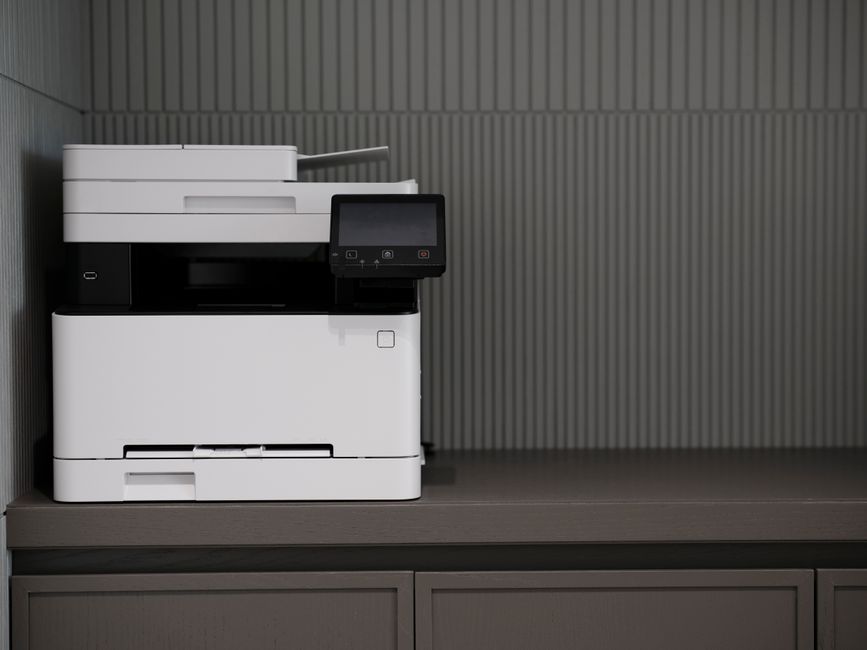
The Brother MFC-T780DW Inkvestment Tank Wireless Color Inkjet All-in-One Printer is a versatile and efficient machine that can handle various printing tasks. However, like any printer, it can encounter issues. Let’s explore some common problems and quick fixes to get your printer back on track.
Printer Offline or Not Connecting
One of the most common frustrations users experience is when their printer appears offline or fails to connect to the network. This can stem from various reasons, including network issues or incorrect settings.
First, check the printer’s connection to your Wi-Fi network. Make sure that the printer’s wireless feature is enabled. You can find this in the printer’s settings menu. Sometimes, simply restarting both the printer and your router can resolve connectivity issues.
If your printer is still offline, consider running a network connection test. This can often pinpoint where the problem lies. You may also want to check for any loose cables if you are using a wired connection.
For further assistance, you can look into why your printer might be offline by visiting this guide.
Lastly, ensure that your printer is set as the default printer on your computer. This will help in avoiding any confusion when sending print jobs.

How to Clear Paper Jams Safely
Paper jams are another common issue that can disrupt your printing tasks. Fortunately, clearing paper jams from the Brother MFC-T780DW is a straightforward process.
Start by turning off the printer and unplugging it to ensure safety. Open the printer cover and gently pull out the paper tray. Look for any jammed paper and carefully remove it, being cautious not to tear the paper. If you see any pieces stuck within the printer, remove those as well.
Once you have cleared the jam, check the paper path for any debris or foreign objects that could cause further jams. Align the paper properly in the tray according to the recommended printer paper size guidelines.
After ensuring everything is clear, plug the machine back in, turn it on, and try printing again. This simple process can save you time and frustration.

Fixing Poor Print Quality (Fading, Streaks)
Another frequent issue with printers is poor print quality, which can manifest as faded text or streaks on the page. This can be caused by several factors, including low ink levels or clogged printheads.
First, check your ink levels. The Brother MFC-T780DW uses an Inkvestment Tank system that holds a significant amount of ink. However, if the ink is low, it may affect print quality. Replace any low or empty cartridges with new ones.
If the ink levels are fine, run a print head cleaning cycle. This is usually found in the printer’s maintenance menu. The cleaning cycle clears any clogs that may be affecting the print quality.
After cleaning, print a test page to see if the quality has improved. You can print a printer test page to evaluate the results.
If issues persist, consider checking the type of paper used, as certain papers may not be suitable for the inkjet process, leading to poor output.
Advanced Troubleshooting
For more persistent issues, advanced troubleshooting may be necessary. This often involves checking software settings and ensuring your printer’s drivers are up to date.
Driver Updates & Reinstallation
Driver issues can cause various problems, from connectivity to print quality. The Brother MFC-T780DW requires the correct drivers to function optimally. If you are experiencing issues, check if your drivers are up to date.
To update the drivers, visit Brother’s official website and navigate to the support section. Here, you can find the latest drivers for your specific model. Download and install them following the on-screen instructions.
If updating does not resolve the issue, consider uninstalling the current driver and reinstalling it. This can fix any corrupt files that may be causing problems.
Regularly updating your drivers can help maintain performance and prevent issues in the future, ensuring your Brother MFC-T780DW Inkvestment Tank Wireless Color Inkjet All-in-One Printer runs smoothly.
When to Call Support vs. Buy New
There comes a time when troubleshooting may not yield results, and it may be necessary to consider professional assistance or even a replacement. Knowing when to call support or buy a new printer is essential.
If your printer is still under warranty, contacting Brother’s customer support is a good first step. They can provide tailored solutions for your specific problem, which may save you time and money.
However, if your printer is older and frequently experiencing issues, it may be more cost-effective to invest in a new model. Consider factors such as repair costs, frequency of issues, and how well the printer meets your current needs.
When comparing options, the Brother MFC-T780DW stands out due to its reliability and advanced features, making it a great choice for those in need of a new all-in-one printer.
In conclusion, the Brother MFC-T780DW Inkvestment Tank Wireless Color Inkjet All-in-One Printer is an excellent choice for home and office use. With proper care and troubleshooting, you can maintain its performance and extend its lifespan. Always remember to check for connectivity issues, clear paper jams carefully, and ensure your print quality is up to par. If problems persist, don’t hesitate to reach out for support or consider upgrading your printer. Investing in the right tools can significantly enhance your printing experience.