
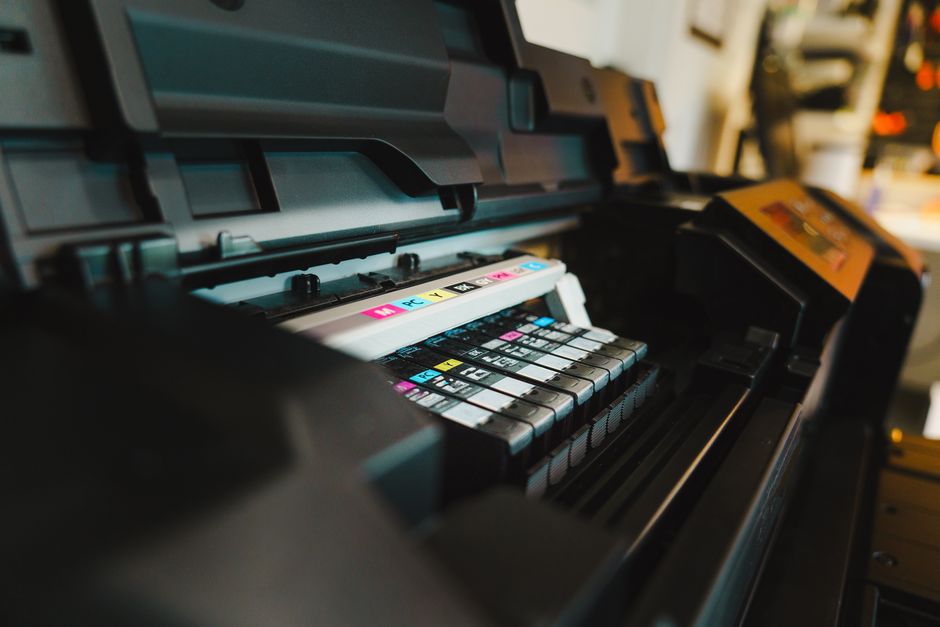
The Canon IJ Printer Assistant Tool is a desktop application for Windows that centralizes maintenance tasks, cartridge alignments, and diagnostic functions for Canon inkjet printers. This utility replaces the older “Maintenance” tab previously embedded directly within the Windows printer driver properties, providing a dedicated interface for managing device health.
What is the Canon IJ Printer Assistant Tool?
Canon developed this tool to streamline printer maintenance. When you install a modern Canon printer driver on Windows 10 or Windows 11, the software installs this assistant utility automatically. It communicates directly with the printer hardware via USB or local network to trigger physical maintenance routines and modify internal firmware settings.
Unlike specialized industrial hardware like a zebra label printer or consumer fabrication tools like an ender 3d printer, which require third-party slicers or proprietary command languages, Canon utilizes this utility to simplify maintenance for everyday home and office users.
How to Access the Canon IJ Printer Assistant Tool
Accessing the tool requires navigating through the Windows Control Panel. Follow these steps to open the interface:
- Press the Windows Key + R to open the Run dialog box.
- Type
control printersand press Enter to open the Devices and Printers window. - Right-click your Canon printer icon and select Printing preferences.
- Click on the Maintenance tab at the top of the preferences window.
- Click the button labeled Start Canon IJ Printer Assistant Tool.
If you use the Windows 11 Settings app, navigate to Bluetooth & devices > Printers & scanners, select your Canon device, click Printing preferences, and locate the Maintenance tab.
Core Features and Maintenance Functions
The utility is divided into specific diagnostic and maintenance categories. Running these functions regularly prevents clogged nozzles and print quality degradation.
Cleaning and Deep Cleaning
If your prints have horizontal white streaks or missing colors, ink has likely dried inside the print head nozzles. The Cleaning function flushes a small amount of ink through the nozzles to clear blockages. If the standard cleaning fails to resolve the issue, the Deep Cleaning option uses a stronger suction force to clear stubborn clogs. Use Deep Cleaning sparingly, as it consumes a significant amount of ink.
Nozzle Check
Before and after cleaning, print a nozzle check pattern. This test prints grid patterns for each ink color. If the grid lines are broken or colors are missing entirely, the print head requires further cleaning. If the pattern prints blank, it may indicate a hardware failure or that the printer has lost its connection to the system.
Print Head Alignment
If vertical lines look crooked or text appears blurry, the print head is out of alignment. The Print Head Alignment tool calibrates the physical position of the print head relative to the paper. The printer will output a sheet containing numbered grid patterns. You must examine these patterns and input the numbers with the fewest visible streaks into the software tool.

Auto Power Settings
This menu allows you to manage the energy consumption of your device. You can configure the printer to turn off automatically after a specified period of inactivity (from 15 minutes up to 240 minutes). You can also enable Auto Power On, which instructs the printer to turn itself on automatically whenever a print job is sent from your computer.
Quiet Mode
Quiet Mode reduces the operational noise of the printer by slowing down the paper feed mechanism and carriage movement speed. This is useful for night printing, though it increases the overall time required to complete a print job.
Troubleshooting Common Connection Issues
Sometimes the tool fails to communicate with the printer, displaying errors such as “Printer is offline” or “Cannot communicate with the printer.”
The Tool Cannot Detect the Printer
If the utility options are grayed out, the software driver cannot establish a two-way communication channel with the device. First, ensure the printer is turned on and connected. If you are using a network connection, check if the IP address of the printer has changed. If the system cannot find the device, you may need to review how to troubleshoot why is my printer offline to restore the connection.
Print Jobs Stay in Queue Without Printing
If the printer responds to the nozzle check command from the assistant tool but refuses to print documents from applications like Microsoft Word or Adobe Acrobat, the issue lies in the Windows print spooler. Restarting the Print Spooler service via services.msc often resolves this block. For a deeper look at resolving these spooler issues, read our guide on why is my printer not printing.
Wireless Setup and Configuration
The assistant tool requires a stable local network connection to work wirelessly. If you have recently changed your router or network password, the printer will lose connection. You will need to reconfigure the network settings on the printer control panel or use the WPS button method. For step-by-step instructions on reconnecting your device to your local network, refer to our guide on how to connect printer to wifi.
Frequently Asked Questions
Can I use the Canon IJ Printer Assistant Tool on macOS?
No, the Canon IJ Printer Assistant Tool is designed exclusively for Windows operating systems. On macOS, these maintenance functions are integrated directly into the print driver settings under the “Utility” section within System Settings.
Why is the “Deep Cleaning” option grayed out?
Deep Cleaning may be disabled if the printer is currently processing another job, if the ink levels are reported as critically low, or if the printer driver is using a generic Microsoft class driver instead of the official Canon IJ driver.
How often should I run the Print Head Alignment?
You should align the print head only when you notice misaligned lines, blurry text, or when you physically replace the print head or ink cartridges. Running it unnecessarily consumes paper and ink.